![Acme_Secondary-Horizontal_Color-1.png]](https://support.acmehouseco.com/hs-fs/hubfs/Acme_Secondary-Horizontal_Color-1.png?height=50&name=Acme_Secondary-Horizontal_Color-1.png)
💡 Akia Tips
✅ Inbox Visibility
Guests will only appear in the Inbox once they’ve responded to or engaged with a message. If a scheduled message was sent but the guest isn’t showing in your Inbox, navigate to the Records tab and search for the guest by name using the filters or the search bar in the top right corner.
✅ Inbox Priority Order
Chats in your Inbox are prioritized in the following order:
- Pinned chats
- Chats you are currently connected to
- New messages
- Closed chats or chats another user is connected to (ordered by most recently updated)
If you prefer not to see closed chats, go to Settings and enable Hide inactive conversations.
Switching Communication Platforms
At the top of the conversation, click the arrow next to the Platform button to switch how you’re communicating with the guest. Available options may include:
- SMS (U.S. & Canada)
- Email
This allows flexibility based on the guest’s preferred method of communication.
Inbox Folders Explained
At the top of the Inbox, you’ll see a dropdown menu that lets you filter which conversations are visible:
- Home (Default): All chats, including guest and team conversations
- Team Chats: Only internal team conversations (no guest chats will appear here)
- Arriving Today: Guests arriving today and any guest chats you’re currently connected to
- In House: Guests arriving, currently in house, or departing today, plus any chats you’re connected to
- Web Chats: Web-based chats and any guest chats you’re currently connected to
If Contact Groups have been set up, you’ll also see folders for those groups here.
How to Connect With a Guest
- Guests who are not yet connected to a user will have a red dot (🔴) next to their name, indicating an unread message.
- Click Open Chat at the top or bottom of the conversation thread to connect with the guest and begin messaging.
A yellow dot (🟡) next to a guest’s name means another user is currently connected to that chat. If you need to take over, click Re-Assign to Me to connect with the guest.
How to Send a Scheduled Message
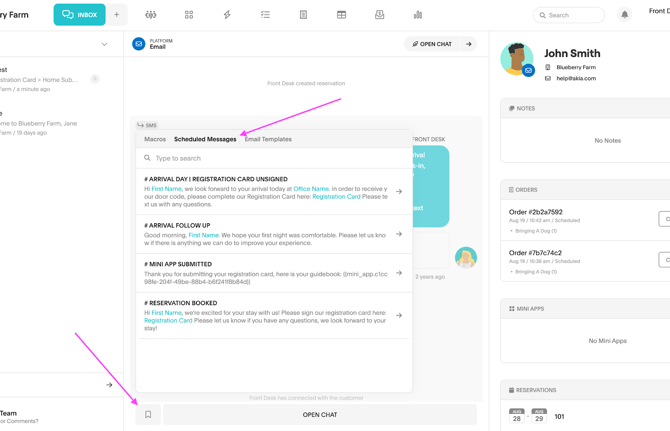
- Click on Templates to the left of the Assign to Me button/message box at the bottom of the page.
- Note that you are able to send a message from the Templates section without having to connect with the guest.
- Select the Scheduled Messages section.
- Select the scheduled message you want to be sent to the guest.
- Choosing Edit will automatically connect you to the guest and populate the message in the text box for editing.
- Click Send
How to Send Macros
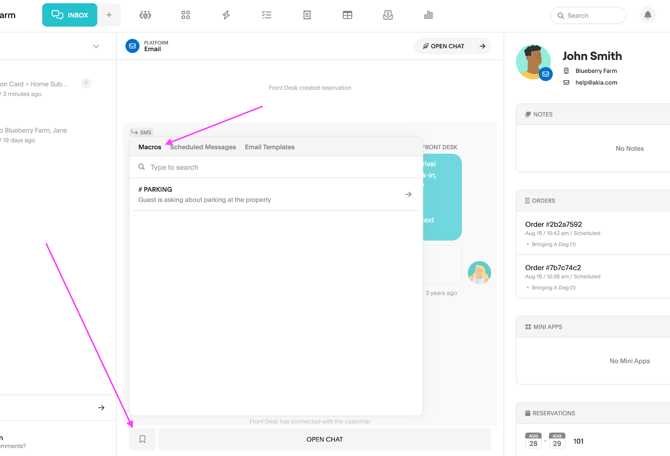
- Click on Templates to the left of the Open Chat button/message box at the bottom of the page.
- Note that you are able to send a message from the Templates section without having to connect with the guest.
- Navigate to the Macros tab of the window
- Select the macro you want to be sent to the guest.
- Choosing Edit will automatically connect you to the guest and populate the message in the text box for editing.
- Click Send
How to Send Attachments
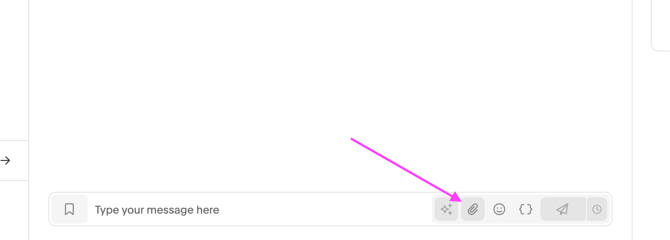
If you want to send an image or a file to a guest or in a team chat, you can upload it from your computer using the paperclip icon to the left of the Send button.
Message Bubbles
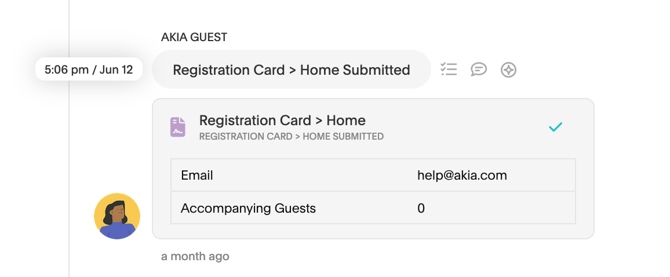
You can hover over any message bubble to see the exact timestamp and create a task from the message itself.
What Is the Broadcast Feature?
Broadcast allows you to send a message to multiple guests at once, whether you want it to go out now or later.
Desktop
- Go to the Records tab
- Use the filters on the left to define the guests you want to reach
- Example 1: Use the Arrival Date filter with today’s date to create a list of all guests arriving today.
- Example 2: Use the In-House date filter with Thursday’s date to create a list of all guests arriving on Thursday.
- Click Select All at the bottom to choose all guests in the list.
- You can also select or unselect guests individually.
- Click Broadcast
- Type in the message you wish to send or use a Macro. You can insert Mini Apps and Message Tokens using the Magic Wand icon.
- Select which platforms you would like the message to be sent on
- Akia will send your broadcast message on the first available platform. If the guest doesn’t have a phone number and you select Email as option 2, Akia will try and send the message via Email.
- If you have Airbnb installed, it will show up as an available platform.
- Optionally attach a file to the message and specify a time in the future for your message to send.
- Click Ok